After the GPU device is installed on the host, follow the operations in this section to configure it for using vGPU on virtual machines.
Precaution
Using vGPU requires configuration with reference to NVIDIA official documentation. For details, refer to the documentation or chapters corresponding to your vGPU software version on the NVIDIA official website. All NVIDIA official document names and search paths mentioned in this chapter are based on version 15.3 as an example, and other versions may be slightly different.
Preparation
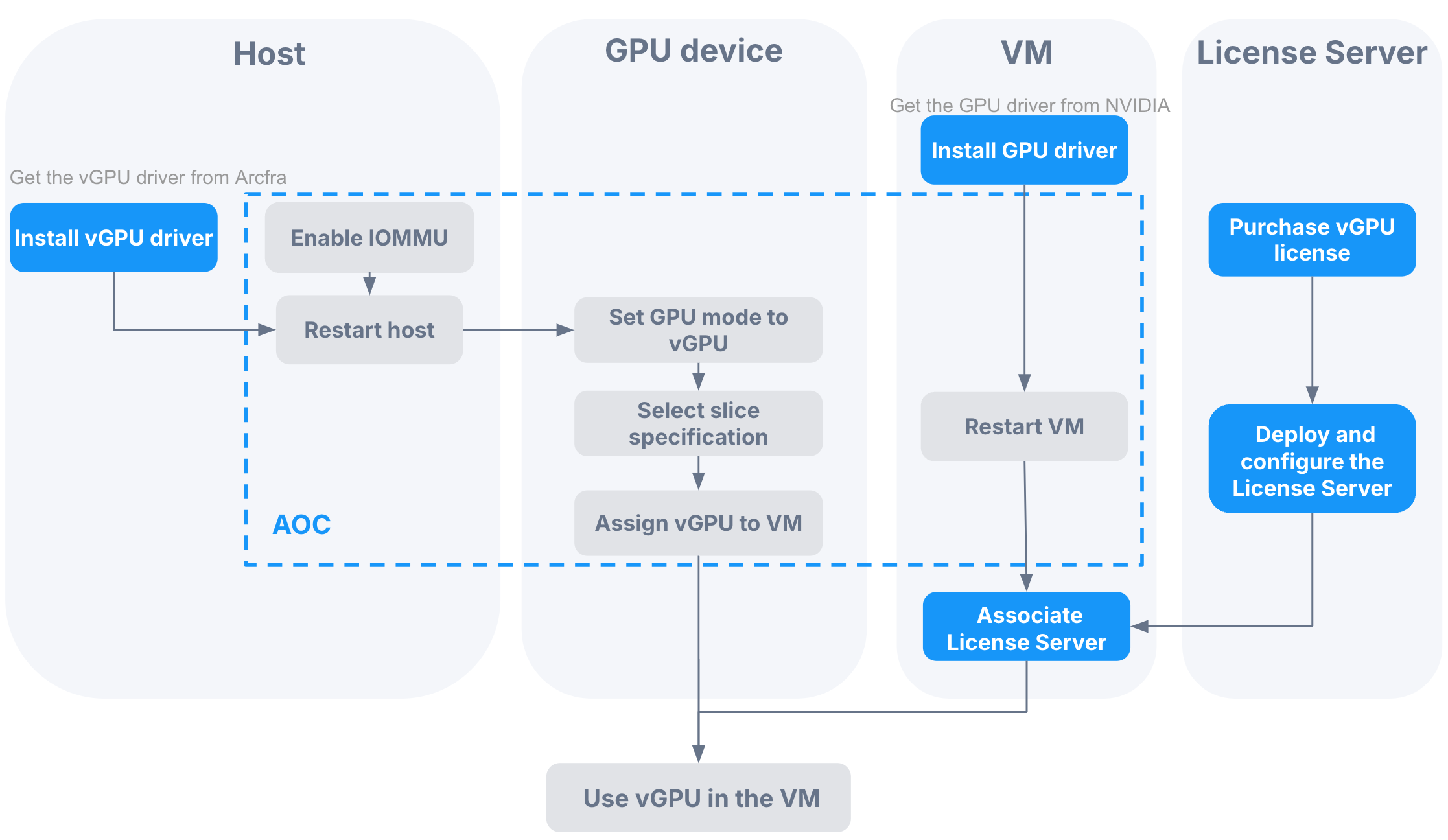
Obtain the host's vGPU driver installation package from Arcfra based on the host's CPU architecture, the host's kernel version, and the selected vGPU driver version.
Based on the vGPU driver version of the selected host and the compatibility list, obtain the virtual machine GPU driver from NVIDIA. The GPU driver version must be compatible with the host's vGPU driver version.
Purchase a vGPU license or apply for a trial version.
Prepare another virtual machine to deploy and configure the NVIDIA vGPU software License Server. For details, refer to Client Licensing User Guide in the NVIDIA official documentation.
Note:
Ensure that the virtual machine with the License Server deployed has network connectivity with the virtual machine with the GPU driver installed.
Procedure
Install the vGPU driver on the host where the GPU device is located.
Complete the following operations on AOC:
Complete the following operations on the virtual machine that has vGPUs mounted:
Install the GPU driver for the virtual machine and restart the virtual machine. For details, refer to the Installing the NVIDIA vGPU Software Graphics Driver chapter in Virtual GPU Software User Guide in the NVIDIA official documentation.
Associate the License Server in the virtual machine GPU driver and then configure the License Server's IP address and port information. For details, refer to Client Licensing User Guide in the NVIDIA official documentation.
