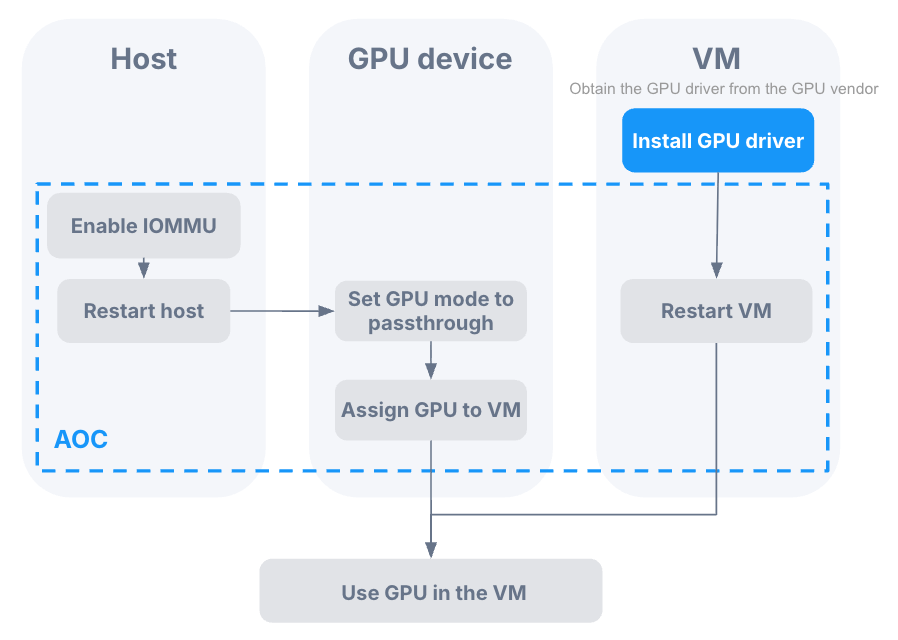
After installing a GPU device on the host, follow the steps in this section to complete the relevant configuration to use the GPU device on a virtual machine.
Precaution
Using GPU passthrough requires additional configuration based on the official documentation of the GPU manufacturer. The document names mentioned in this section are examples of a specific version, and different versions may vary slightly.
Preparation
Obtain the GPU driver for the virtual machine. You should obtain the GPU driver from the official website of the GPU device manufacturer based on the GPU model, virtual machine operating system, and driver version officially supported by the GPU device manufacturer.
Procedure
When using NVIDIA GPU, log in to the host and execute commands to disable nouveau drivers.
Run the following commands to create two configuration files:
cat <<_EOF_ > /etc/modprobe.d/gpu-passthrough-disable-nouveau.conf
blacklist nouveau
options nouveau modeset=0
_EOF_cat <<_EOF_ > /usr/lib/modprobe.d/gpu-passthrough-disable-nouveau.conf
blacklist nouveau
options nouveau modeset=0
_EOF_Run the following command to unload the nouveau module:
modprobe -r nouveauLog in to AOC to enable IOMMU for the host where the GPU device is located and restart the host.
Set the GPU mode to passthrough.
If you are using this GPU device for the first time, the mode is set to passthrough by default. You can proceed directly to Step 4. If the GPU device has previously been sliced as vGPUs, first switch the GPU mode to passthrough.
Install the GPU driver for the virtual machine:
When using NVIDIA GPU devices, refer to the chapter on Installing the NVIDIA vGPU Software Graphics Driver in Virtual GPU Software User Guide in the official NVIDIA documentation.
When using Cambricon GPU devices, refer to Cambricon Driver Installation Package User Manual in the official Cambricon documentation.
Restart the virtual machine.
