Prerequisites
To import the OVF virtual machines to the AVE platform, ensure the cluster to deploy Arcfra Migration Tool is already associated with AOC.
Verify in advance that you obtained OVF files, including files in .ovf format and .vmdk format.
Recommended virtual machine configurations
The recommended configurations for the OVF virtual machine differ depending on the virtualization platform.
VMware ESXi:
Follow the Web UI instructions for configuration.
AVE:
Procedure
If you import the OVF virtual machine to the AVE platform, navigate to the cluster where you intend to deploy Arcfra Migration Tool and open the cluster page. On the cluster page, click + Create in the upper right corner and then select Import VM. You should see the Import VM dialog box.
If you import an OVF virtual machine to the VMware ESXi platform, navigate to the cluster where you intend to deploy Arcfra Migration Tool and open the cluster page. On the cluster page, click Actions in the upper left corner and then select Deploy OVF Template. You should see the Deploy OVF Template dialog box.
Upload the OVF files and import the OVF virtual machine according to the recommended configurations above.
After importing the OVF virtual machine, open the virtual machine console and log in to the operating system of Arcfra Migration Tool with the default account root.
After logging in, configure the IP and gateway address of each NIC so that the Arcfra Migration Tool virtual machine can connect to the management networks of the source and destination clusters. If you do not manually configure the NICs at this step, the system by default will use DHCP to obtain the network configurations.
Note:
- When the ESXi hosts are added to the VMware vSphere cluster using the domain name, you will also need to configure the DNS server in this step and ensure that it can correctly parse the relevant domain addresses. This can also be performed after Arcfra Migration Tool is deployed. For details, refer to the Checking the DNS server section.
- To accelerate data migration, you can configure a NIC at this step to connect to the storage network of the ACOS (AVE) cluster. If the Arcfra Migration Tool virtual machine is deployed on the AVE platform, ensure to first add a storage NIC (the VLAN ID of the storage network must be 0), then configure the IP and gateway for each NIC. This step can ensure that Arcfra Migration Tool is connected to the management networks of both the source and destination clusters, as well as to the storage network of the ACOS (AVE) cluster to accelerate migration.
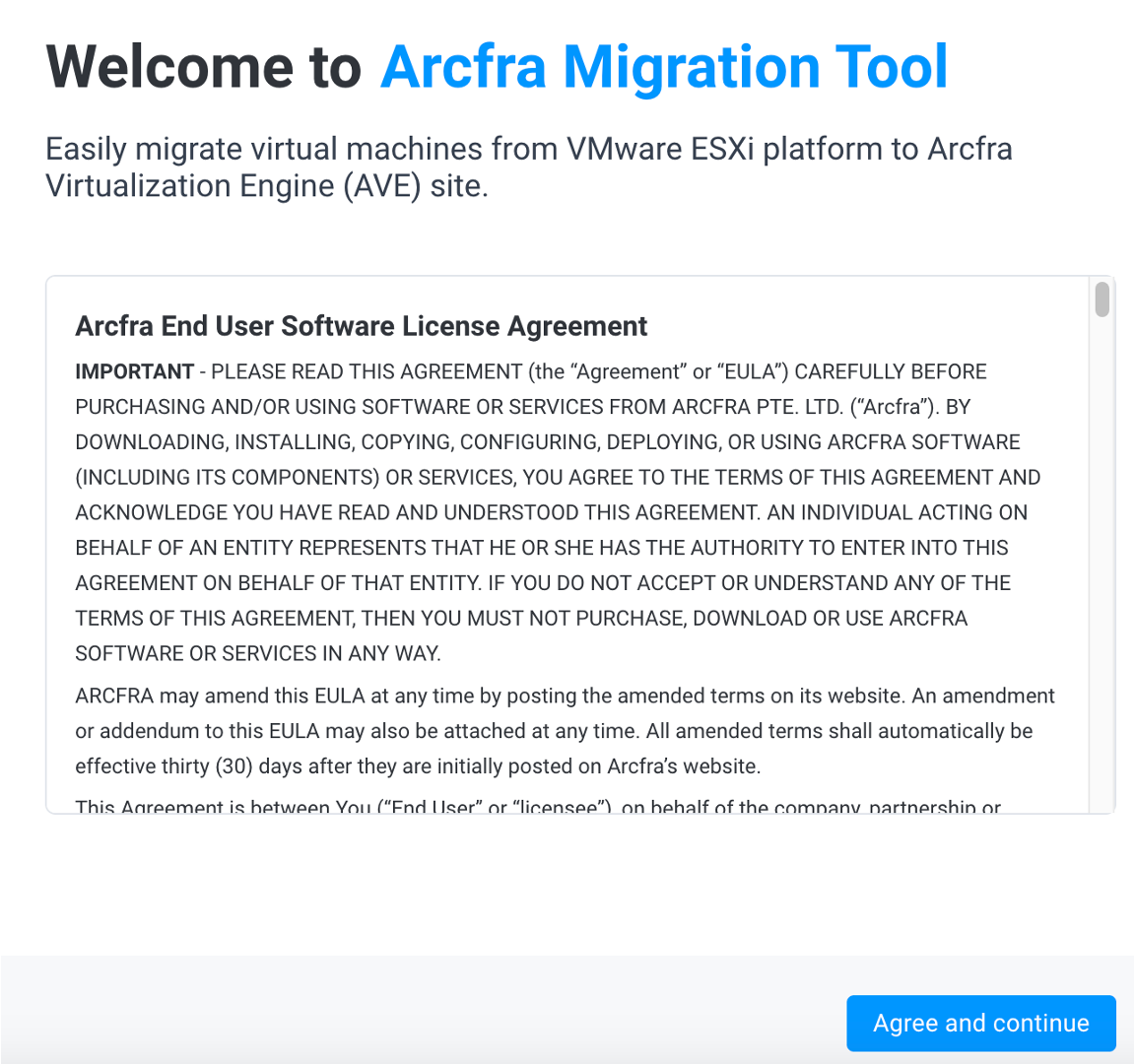
Once the network configuration is complete, use a browser to access the IP address of the Arcfra Migration Tool virtual machine. If you see the following welcome page, the deployment is successful. Then click Agree and continue.
After deployment, on the Create account page, enter your username and password. Click Create and Login to log in to Arcfra Migration Tool.
If you forget the username or password created here in subsequent operations, refer to the Resetting the Arcfra Migration Tool account section.
