This section describes how to replace a member physical disk in the Arcfra system disk on a host in an ACOS cluster.
Before locating the disk slot, check the model of the storage controller and whether it supports the locator light flashing:
Information:
A member physical disk of the Arcfra system disk can only be identified by its Serial number shown on the Member physical disk tab.
Disk 0orDisk 1indicate the disk order but do not uniquely identify this disk.
Flash the locator light of the physical disk via the AOC or BMC interface.
Broadcom MegaRAID (LSI SAS3XXX) supports locator light flashing via AOC.
Click the Host tab in AOC, select the host to enter its Overview page, and then click the Arcfra system disk widget for details.
In the pop-up details panel, select the Member physical disk tab. Click the ellipsis (···), and then click Locator light on or Locator light off to locate the disk based on whether its locator light is flashing.
Other types of storage controllers may support locator light flashing via BMC. For example, Dell BOSS-N1 supports this function via the iDRAC interface. For detailed instructions, refer to related documentation provided by the hardware vendor.
Remove the problematic physical disk as indicated by the flashing light, and insert a new physical disk into the same slot.
Note:
Ensure that the new physical disk matches the specifications of the original member physical disk in the RAID group.
Wait for the storage controller to complete hardware RAID rebuilding to synchronize data between the two physical disks.
This process does not affect the normal operation of the server and operating system.
Check the serial number of the physical disk via the AOC or BMC interface.
To check the serial number via AOC:
Click the Host tab in AOC, select the host to enter its Overview page, and then click the Arcfra system disk widget for details.
In the pop-up details panel, select the Member physical disk tab and view the Serial number.
To check the serial number via the BMC interface of the server, refer to related documentation provided by the hardware vendor.
Log in to AOC and set the node whose physical disk is to be replaced to maintenance mode.
Shut down the node in AOC.
Disconnect the server chassis power supply and open the chassis cover.
Remove the problematic physical disk as indicated by its serial number, and insert a new physical disk into the same slot.
Note:
Ensure that the new physical disk matches the specifications of the original member physical disk in the RAID group.
Reassemble the server chassis and reconnect the power supply, and then power on the server.
Log in to AOC and exit maintenance mode for this node.
Wait for the storage controller to complete hardware RAID rebuilding and synchronize data between the two physical disks.
The rebuilding process does not affect the normal operation of the server and operating system.
After a member physical disk of the Arcfra system disk is replaced, the storage controller typically rebuilds the RAID automatically to synchronize data between the two physical disks. During rebuilding, the RAID group enters a "degraded" state. Once the rebuilding is complete, the RAID group returns to normal.
Methods for checking the hardware RAID rebuilding progress vary with controller and server models. The table below lists several commonly used storage controllers for Arcfra system disks, their corresponding BMC systems, and command-line tools for checking the rebuilding progress. Since the interfaces may vary across different BMC systems, refer to the related documentation provided by the hardware vendor for detailed instructions.
| Vendor | BMC system | RAID controller | Command-line tool |
|---|---|---|---|
| Dell PowerEdge | iDRAC | Marvell SATA M.2 (Dell BOSS-S1/S2) | mvcli |
| Marvell NVMe M.2 (Dell BOSS-N1) | mnvcli | ||
| Lenovo ThinkSystem | XClarity | Marvell SATA M.2 (ThinkSystem M.2 SATA 2-Bay RAID) | mvcli |
| Marvell NVMe M.2 (ThinkSystem M.2 NVMe 2-Bay RAID) | mnvcli | ||
| xFusion | iBMC | Broadcom MegaRAID (LSI SAS3XXX) | storcli |
Run mvcli info -o vd to check the RAID rebuilding progress. Find BGA progress in the output displayed below.
$ mvcli info -o vd
Virtual Disk Information
-------------------------
id: 0
name: test_raid1
status: degraded
Stripe size: 64
RAID mode: RAID1
Cache mode: Not Support
size: 457798 M
BGA status: running
Block ids: 0 4
# of PDs: 2
PD RAID setup: 0 1
Running OS: yes
BGA progress: rebuilding is 15% done
Total # of VD: 1Run the following command to check the RAID rebuilding progress.
/opt/marvell/mnvcli/dell/mnv_cli./opt/marvell/mnvcli/lenovo/mnv_cli.Find BGA progress in the output displayed below.
$ /opt/marvell/mnvcli/dell/mnv_cli info -o vd
VD ID: 0
Name: VD_0
Status: Degrade
Importable: No
RAID Mode: RAID1
size: 447 GB
PD Count: 2
PDs: 0 1
Stripe Block Size: 128K
Sector Size: 512 bytes
VD is secure: No
BGA progress: Rebuilding is running in 21%
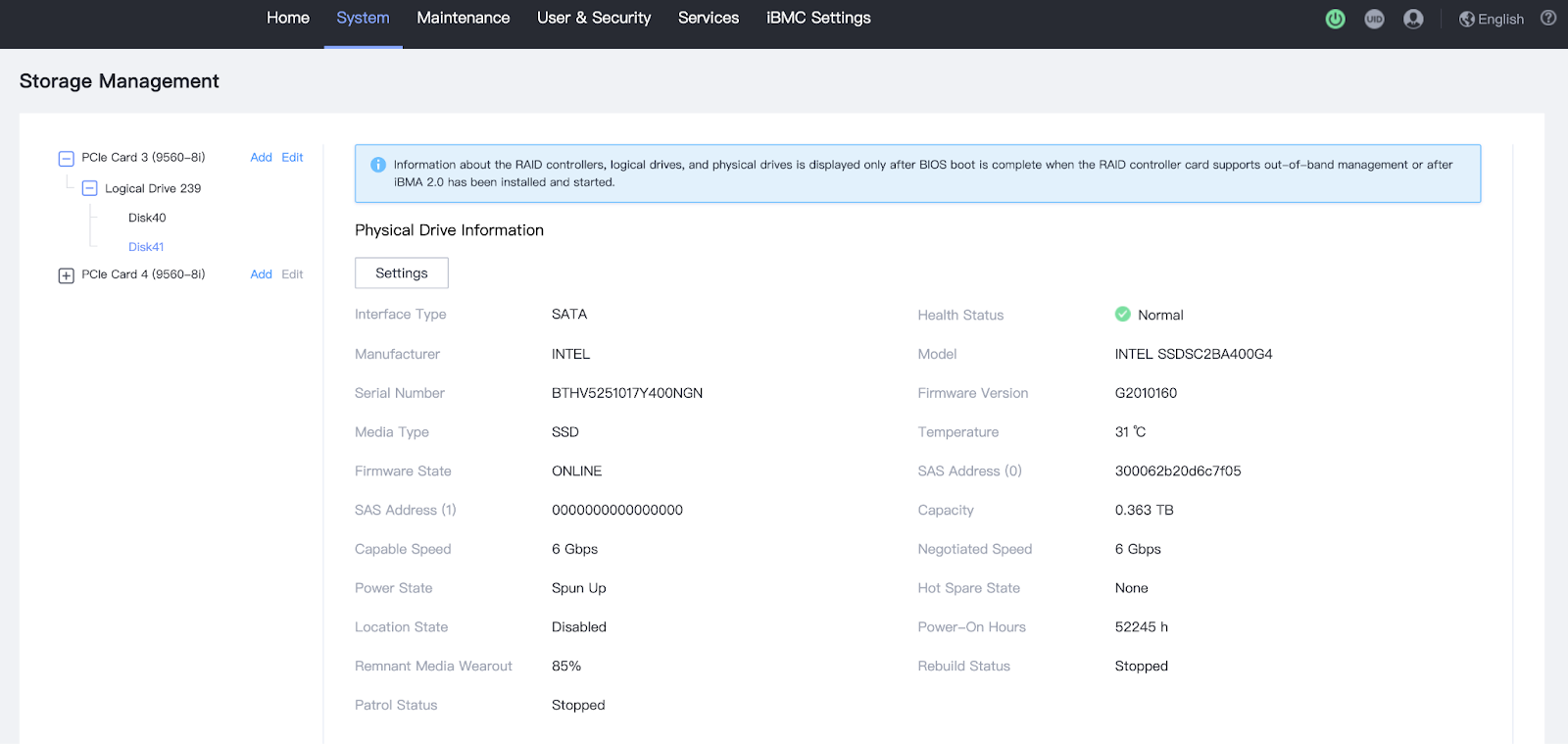
Total # of VD: 1On servers using iBMC and Broadcom MegaRAID storage controllers, you can view the RAID rebuilding progress on the iBMC interface, which is displayed as Rebuild Status in the following figure:

After the rebuilding is complete, the newly inserted disk automatically joins the RAID group: