Prerequisite
virtio-win-0.1.185. For virtual machines with Windows Server 2008 R2 or earlier version, choose the version virtio-win-0.1.160.Procedure
Check whether the virtual machine is in the Shutdown state. If not, shut down the virtual machine first.
Click the virtual machine to open its details panel. In this panel, click Edit on the right of the Disk field to open the Edit disk dialog box.
In the Edit disk dialog box, make sure that the bus type of all disks is set to IDE.
Click Create new virtual volume to create a new virtual volume. Set its bus type to VIRTIO and other configurations to default.
Click Mount CD-ROM to mount a CD-ROM. In the ISO image option bar, select the ISO image of the VirtIO drivers. Once finished, click Save.
Go back to the details panel, and click Edit on the right of the Network device field to open the Edit VM network hardware dialog box. In this dialog box, check if there is a VIRTIO virtual NIC. If not, add a virtual NIC and set its mode to VIRTIO.
Wait until the above modifications are successfully updated. Once finished, click the virtual machine to open its details panel, and then click Start.
Once the virtual machine is started, click Terminal to go to the terminal page. On this page, log into this virtual machine and open its device manager to update the VirtIO disk driver and VirtIO NIC driver.
Updating the VirtIO disk driver
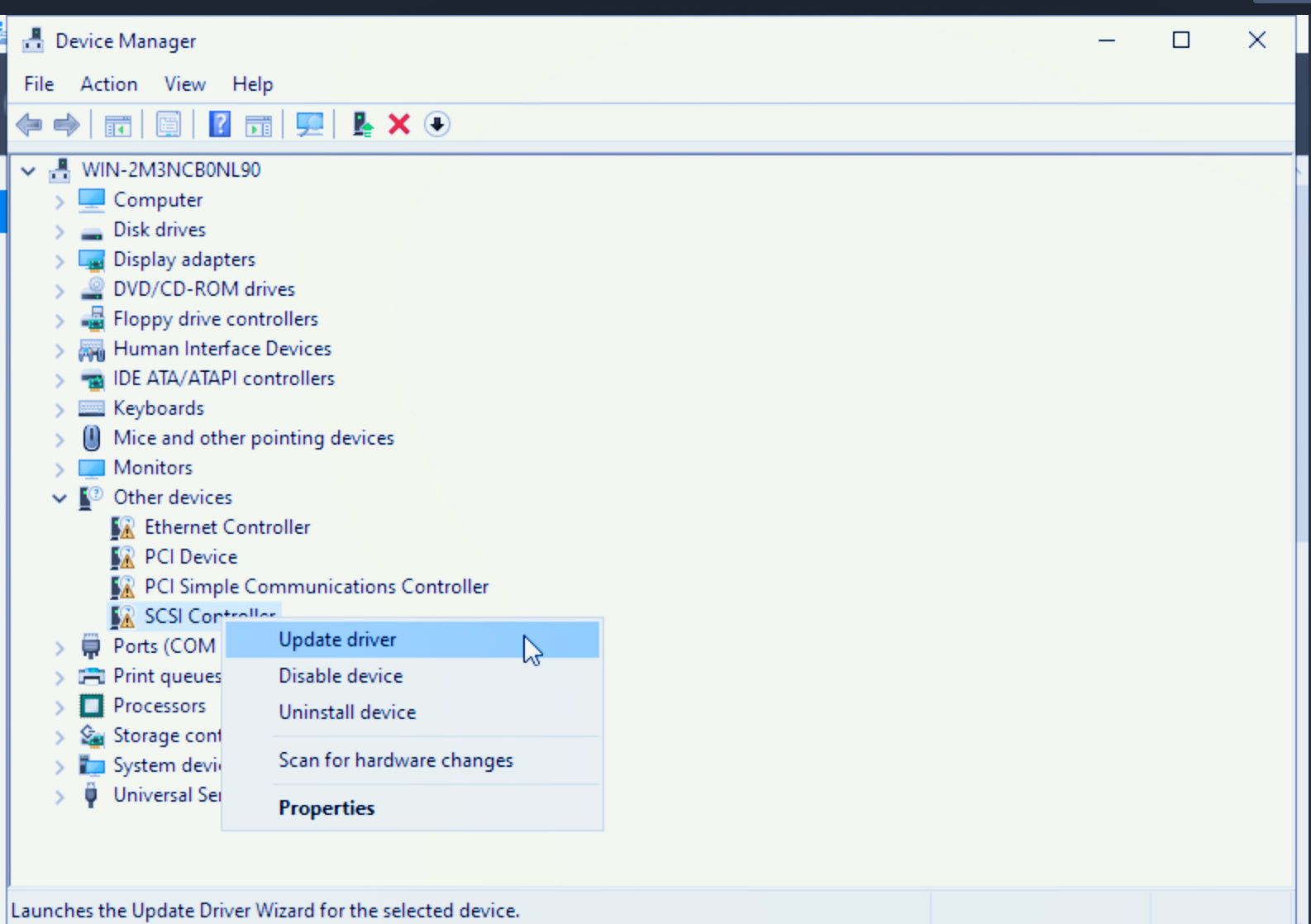
On the Device Manager window, expand Other devices, and then right click SCSI Controller and select Update driver to open the Update Drivers - SCSI Controller window.
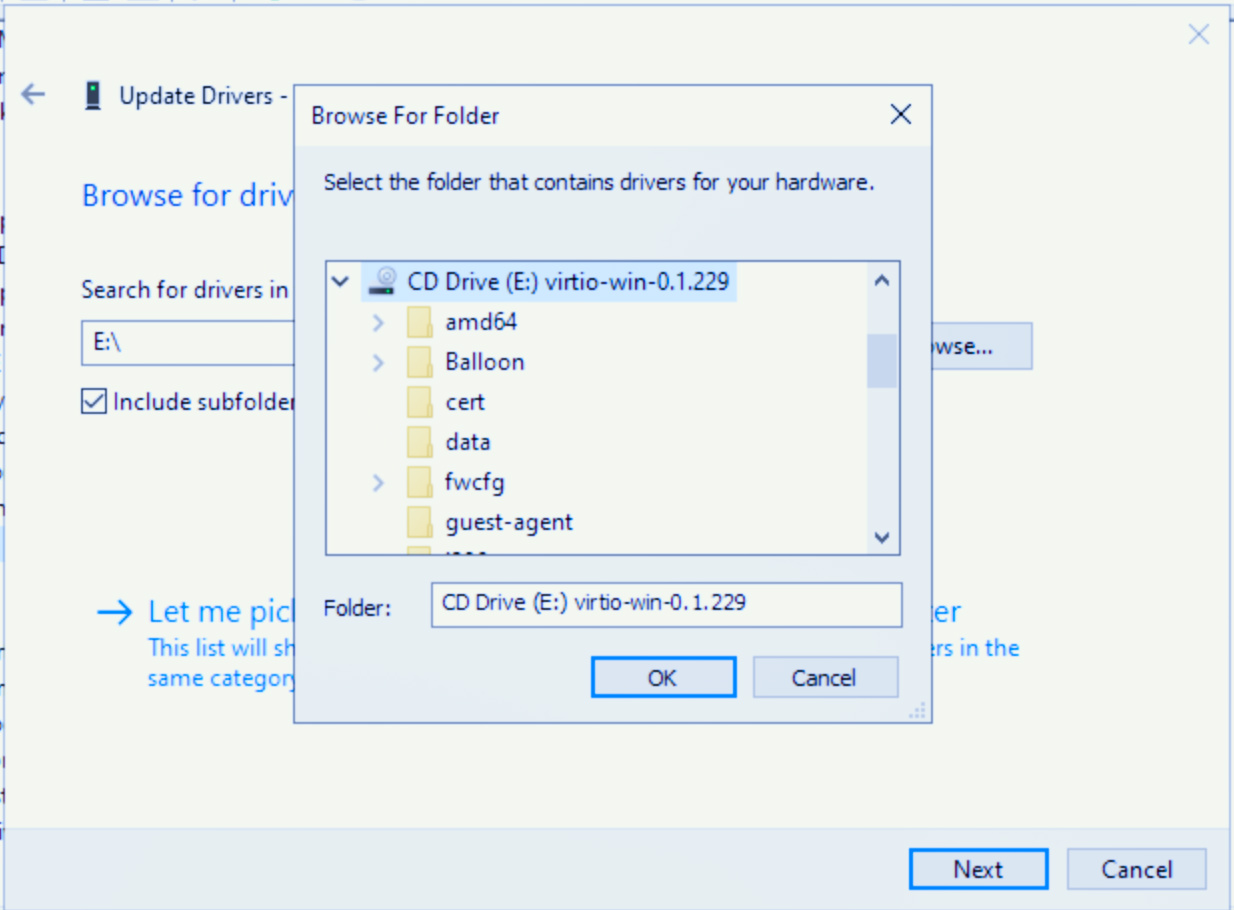
On the Update Drivers - SCSI Controller window, click Browse my computer for drivers, select the CD drive for the VirtIO driver, click OK, then click Next.
In the Windows Security dialog box, make sure that the driver to be installed is Red Hat VirtIO SCSI controller, and then click Install.
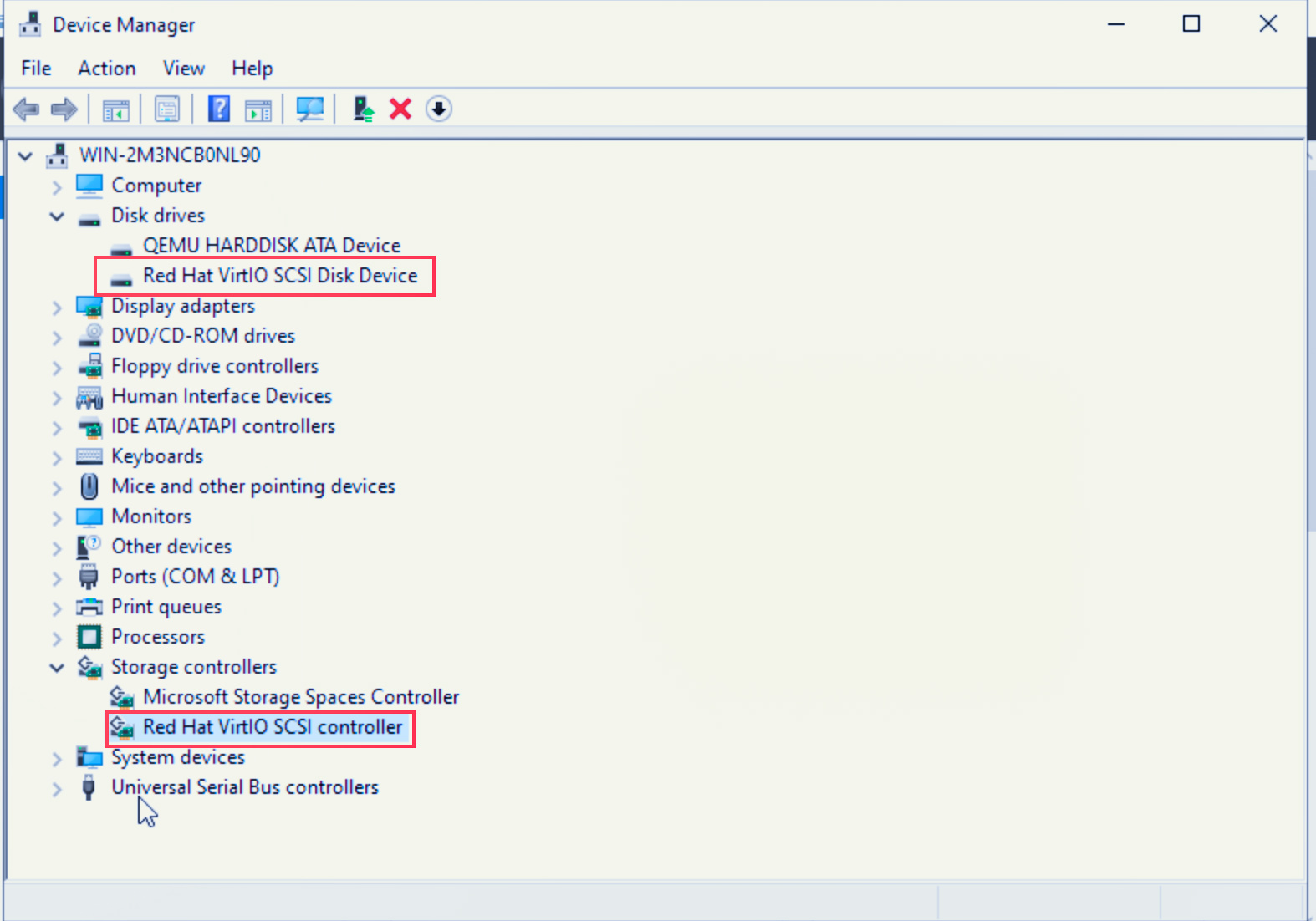
Once the installation is finished, go back to the Device Manager window. If you can find Red Hat VirtIO SCSI Disk Device under Disk drives and Red Hat VirtIO SCSI controller under Storage controllers, then this installation is successful.
Updating the VirtIO NIC driver
On the Device Manager window, expand Other devices, and then right click Ethernet Controller and select Update driver to open the Update Drivers - Ethernet Controller window.
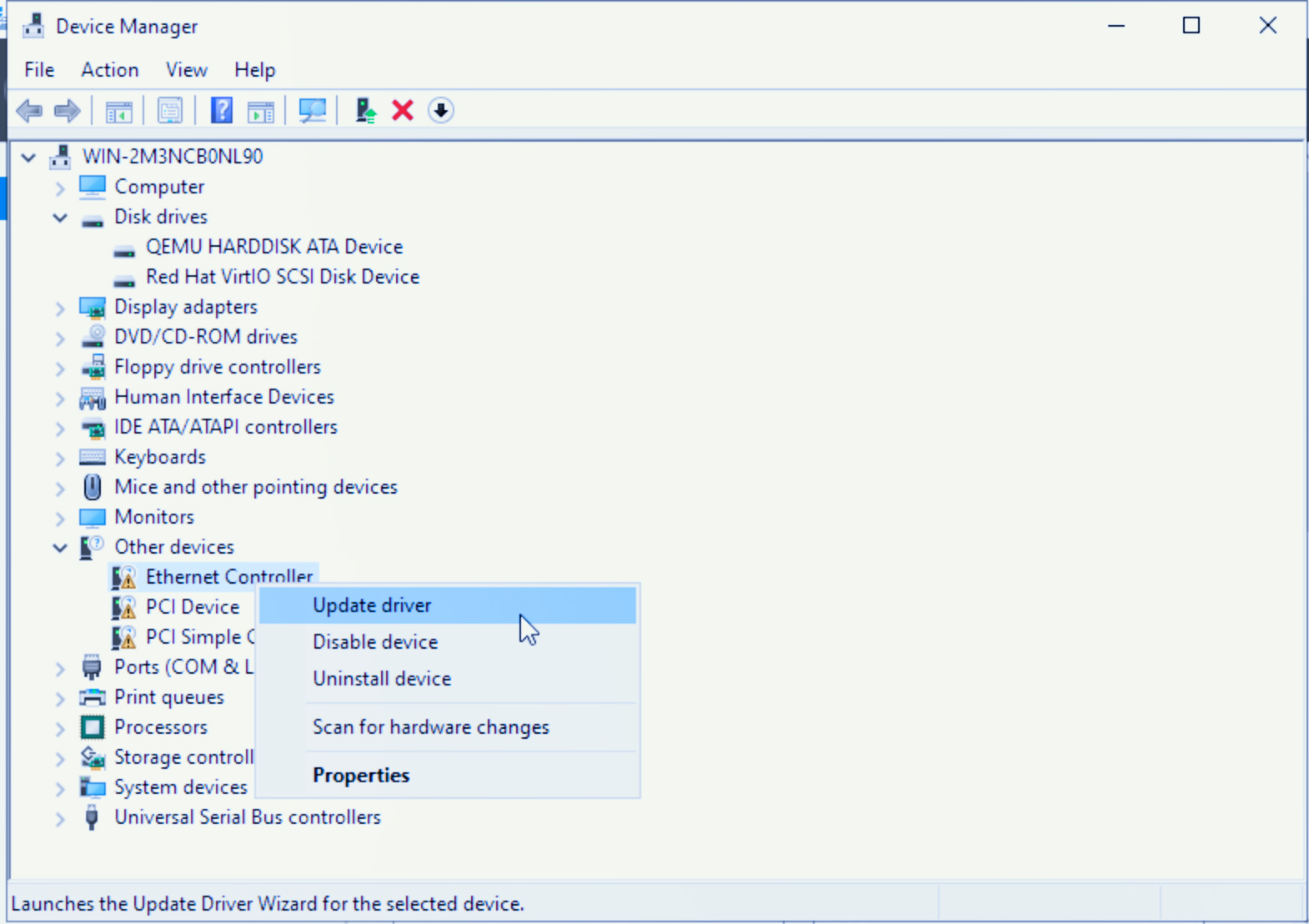
On the Update Drivers - Ethernet Controller window, click Browse my computer for drivers, select the CD drive for the Virtio driver, click OK, then click Next.
In the Windows Security dialog box, make sure that the driver to be installed is Red Hat VirtIO Ethernet Adapter, and then click Install.
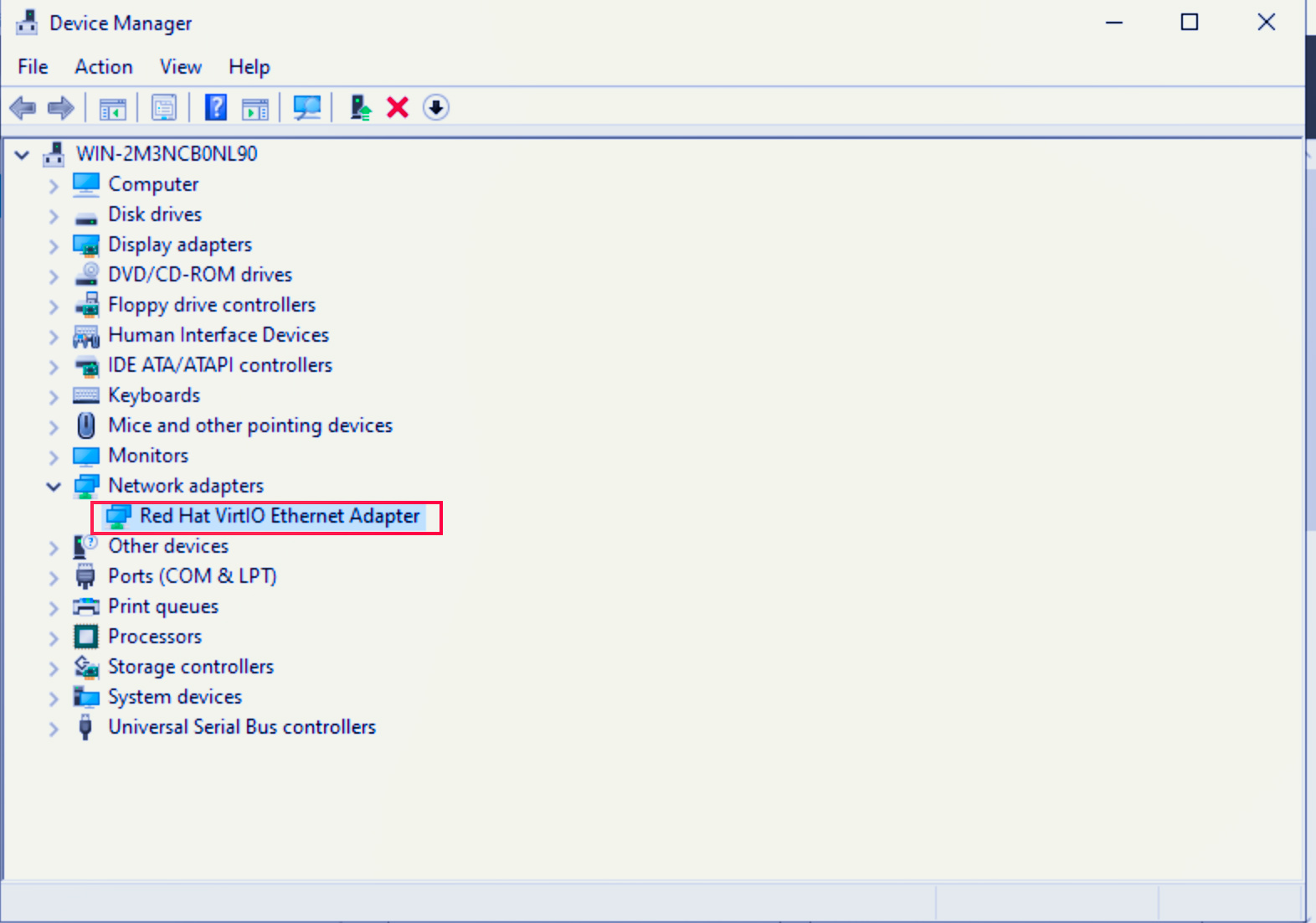
Once the installation is finished, go back to the Device Manager window. If you can find Red Hat VirtIO Ethernet Adapter under Network adapters, then this installation is successful.