Prerequisite
Enter the user's mobile phone number used for the Thales platform in the custom field Custom in advance, which will be used for attribute mapping.
Procedure
Log in to the Thales platform. In the left sidebar, select Applications. Click +. The Add Application dialog box is displayed. Perform the following procedure accordingly and then click Add.
Generic Template type.SAML.The newly created application will be displayed on the left side of the Applications page. Click the application created in the last step to enter the Configure page. Perform the following procedure accordingly.
Step 1: Generic template settings
Click Download metadata file to download the IdP metadata file metadata.xml to your local computer. It contains key information used by a SAML IdP to support communication and verification during the SAML authentication.
Click Next Step.
Step 2: STA settings
Click the Upload Generic Template Metadata button on the page to upload the obtained SP metadata file to Thales.
After uploading the SP metadata file, Thales will automatically parse the configuration items into the fields. Check whether the configuration is correct and adjust the mapping rule accordingly.
If the ASSERTION CONSUMER SERVICE URL(POST BINDING) field is empty, you need to manually refer to the SP metadata file, view the Location field in the AssertionConsumerService tag, and enter the value in the corresponding field.
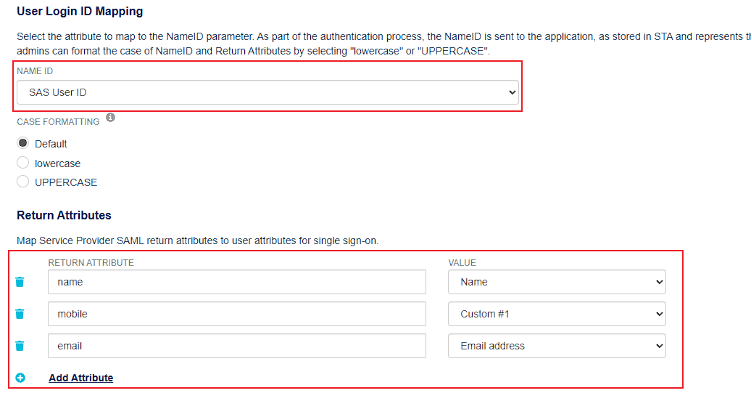
Edit mapping rules. Mapping rules define the mapping relationship between user attributes in the IdP and the corresponding fields in the SP.
Username mapping:
Change NAME ID to SAS User ID.
Name mapping:
Add an attribute under the RETURN ATTRIBUTE field and map Name to the name field.
Email mapping:
Add an attribute under the RETURN ATTRIBUTE field and map Email address to the email field.
Phone number mapping:
Add an attribute under the RETURN ATTRIBUTE field and map Custom to the mobile field.
Click Save to complete the IdP SSO configuration.
