After selecting the operating system, take the following steps to configure the hardware for the virtual machine.
Procedure
Configure the CPU as follows. Select 6 for CPU, and select 1 for Cores per Socket. Other values are not recommended. To ensure that sufficient resources are reserved for the virtual machine when CPU resources are limited, the value for Reservation should be the product of "6 × single-core frequency". You can view the specific value of "single-core frequency" by running the following command on the ESXi host.
esxcli hardware cpu list | grep 'Core Speed' | awk '{print $NF}' | cut -c1-4 | sort -u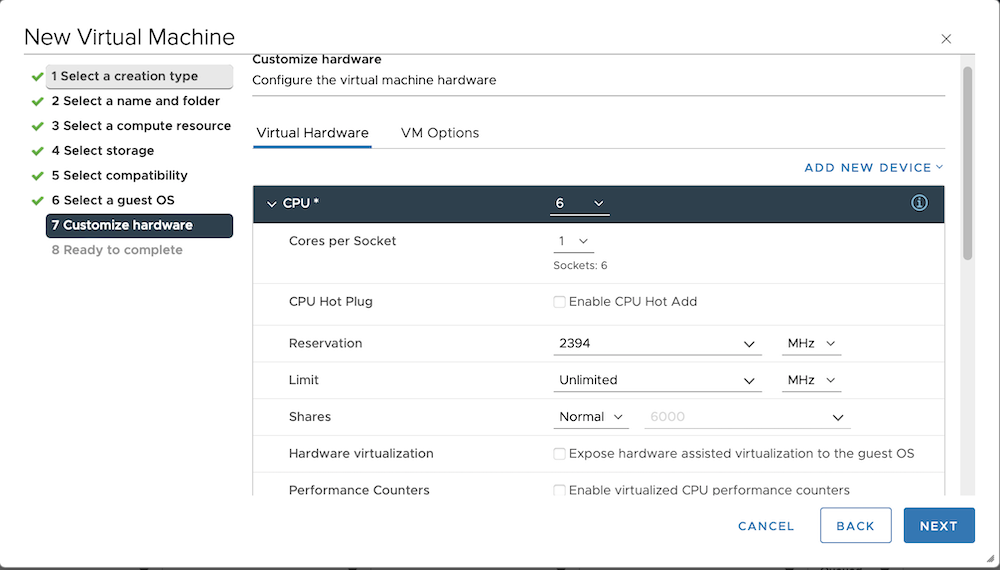
If you want to enable RDMA for the cluster, select 7 for CPU, and the value for Reservation should then be the product of "7 × single-core frequency".
Configure the memory as follows. Note that the option Reserve all guest memory (All locked) must be selected.
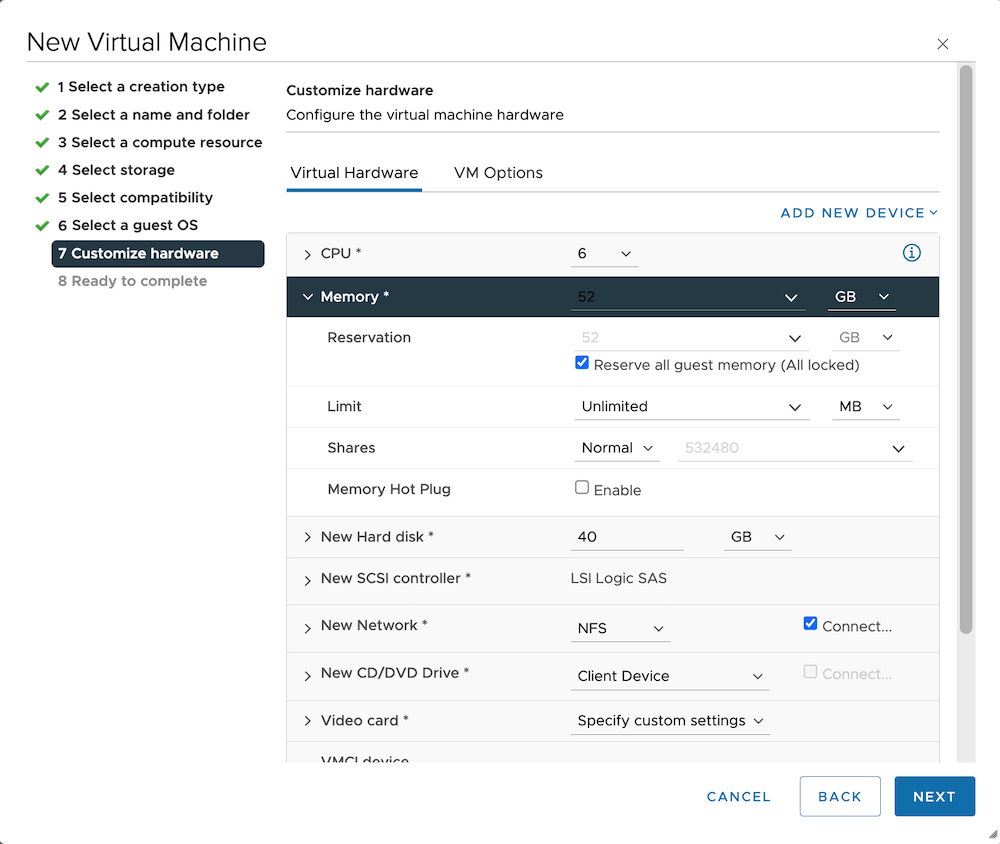
If you want to enable RDMA for the cluster, allocate an additional 3 GB of memory.
Configure the hard disk as follows.
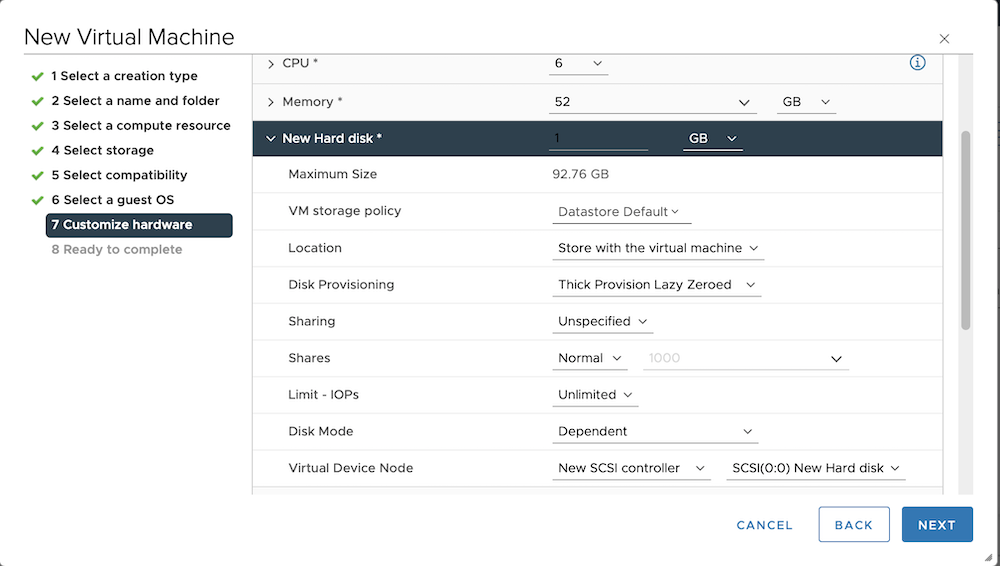
Select LSI Logic Parallel for New SCSI controller, and set SCSI Bus Sharing to the default value None.
On the Virtual Hardware page, click ADD NEW DEVICE > Network Adapter to add three network adapters, which will be used for the management network, storage network, and NFS network, respectively. Set the parameters as follows. The ZBS network will be used as the storage network. The VM Network is the management network created by default by the ESXi system, and you can also create other management networks.
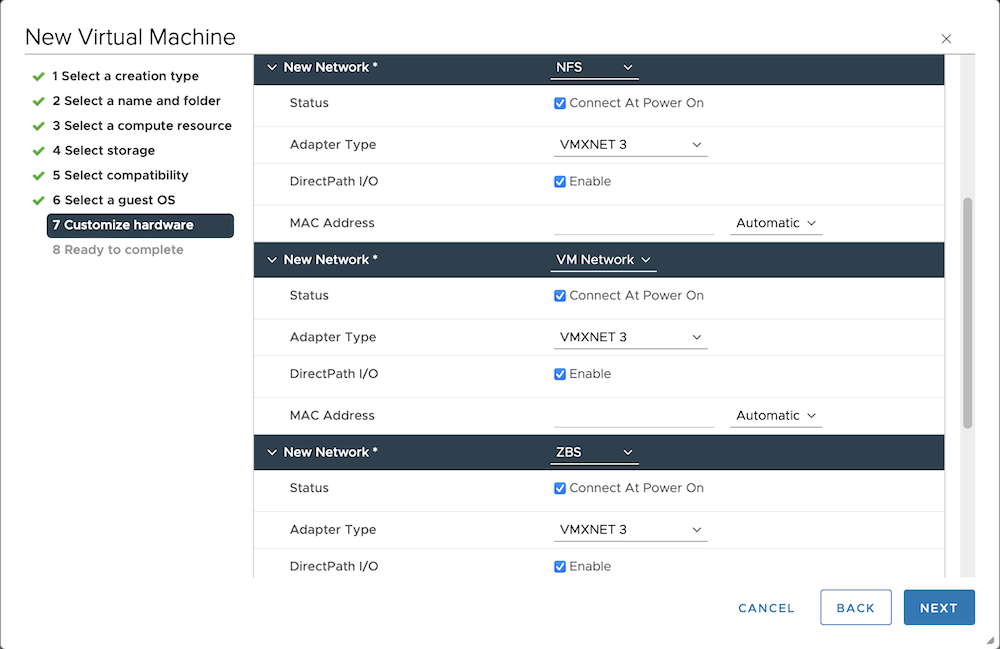
(Optional) If RDMA is enabled for the cluster, the existing ZBS network will be used as the VMware access network. In this case, take the following steps to add a new network adapter for the storage network.
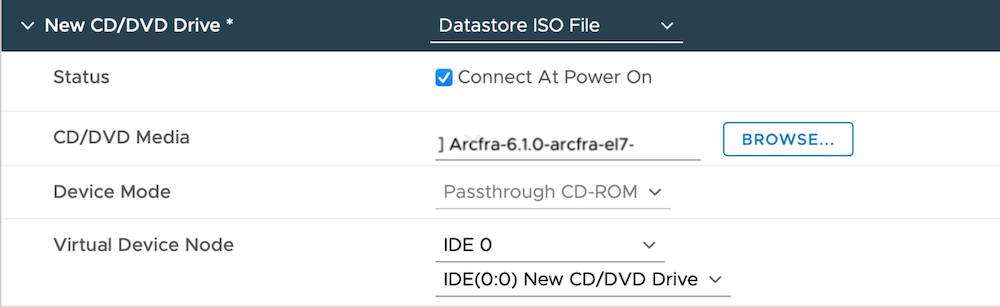
Select Datastore ISO File for New CD/DVD Drive and upload the ACOS installation image for the upcoming installation. After the upload is complete, select the ACOS installation image in the CD/DVD Media option. Set the other parameters as follows:
On the Virtual Hardware page, click the ADD NEW DEVICE > PCI Device at the top right. If the ESXi host uses a storage controller to manage physical disks other than the ESXi system disk, select the necessary storage controller for passthrough. Otherwise, select the necessary physical disk for passthrough.
In the Customize hardware window, click the VM Options tab and confirm that the option to synchronize time with the host is not enabled in the VMware Tools option.
In the Advanced options, set Latency Sensitivity to High for the virtual machine.
Follow the on-screen instructions to proceed. Finally, click FINISH to complete the creation of the virtual machine.
