There are several ways to prepare VM templates:
- Import VM template from OVF/vmdk file
- Convert/Clone a VM into template
As a starting point, let’s see how to import VM template from OVF and vmdk file.
If you don’t have a VM template, you can refer to AOC User Guide to learn how to convert/clone a VM into a VM template.
-
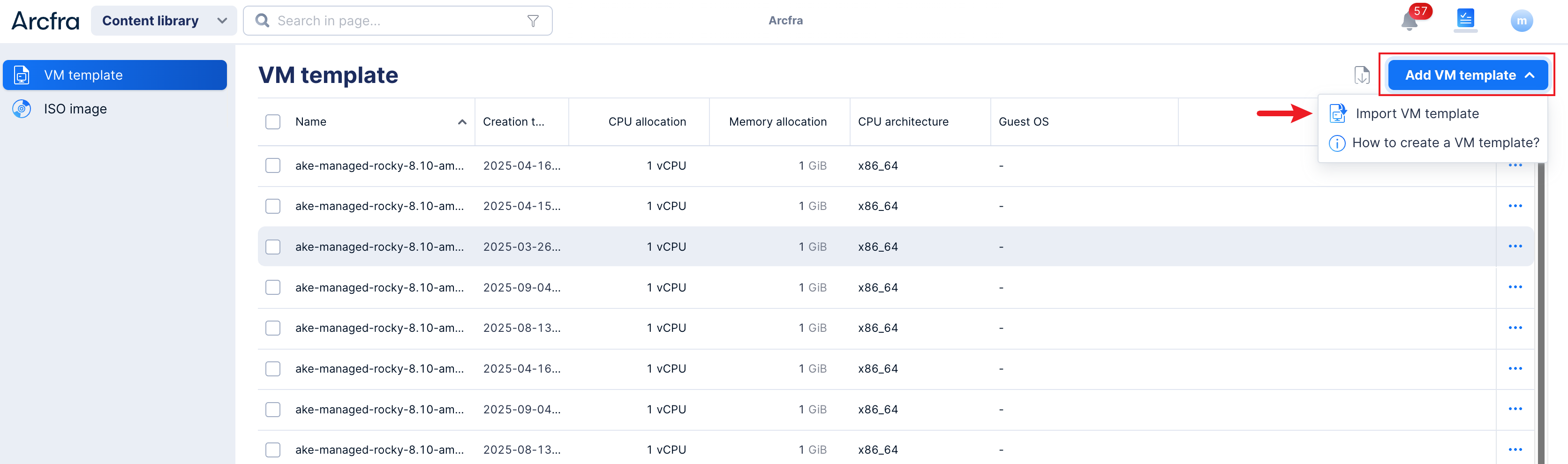
In the AOC homepage, navigate the "Content Library" page, then click "Add VM template" in the upper right corner, then choose Import VM template to start the "Import VM template" wizard.
-
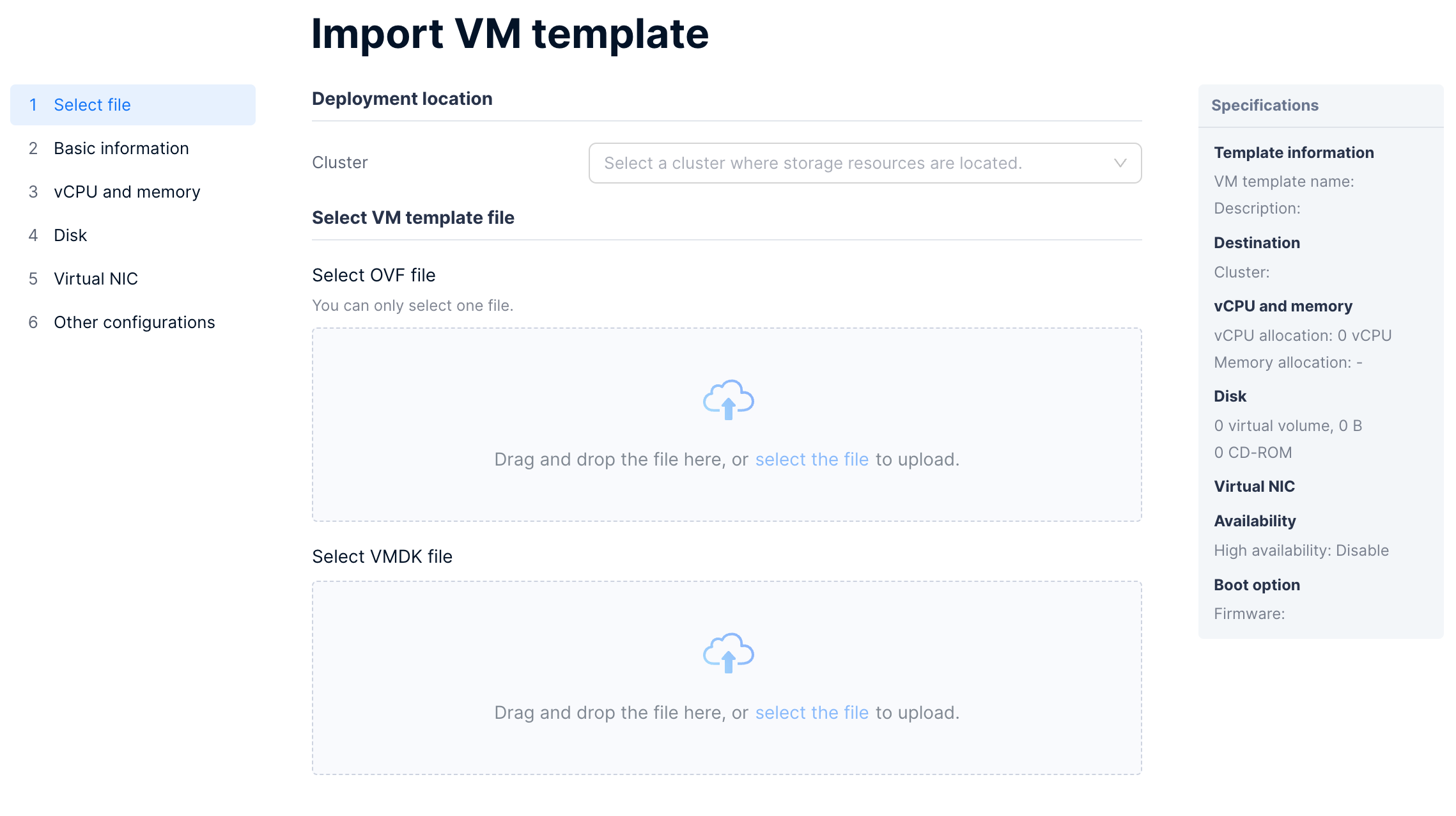
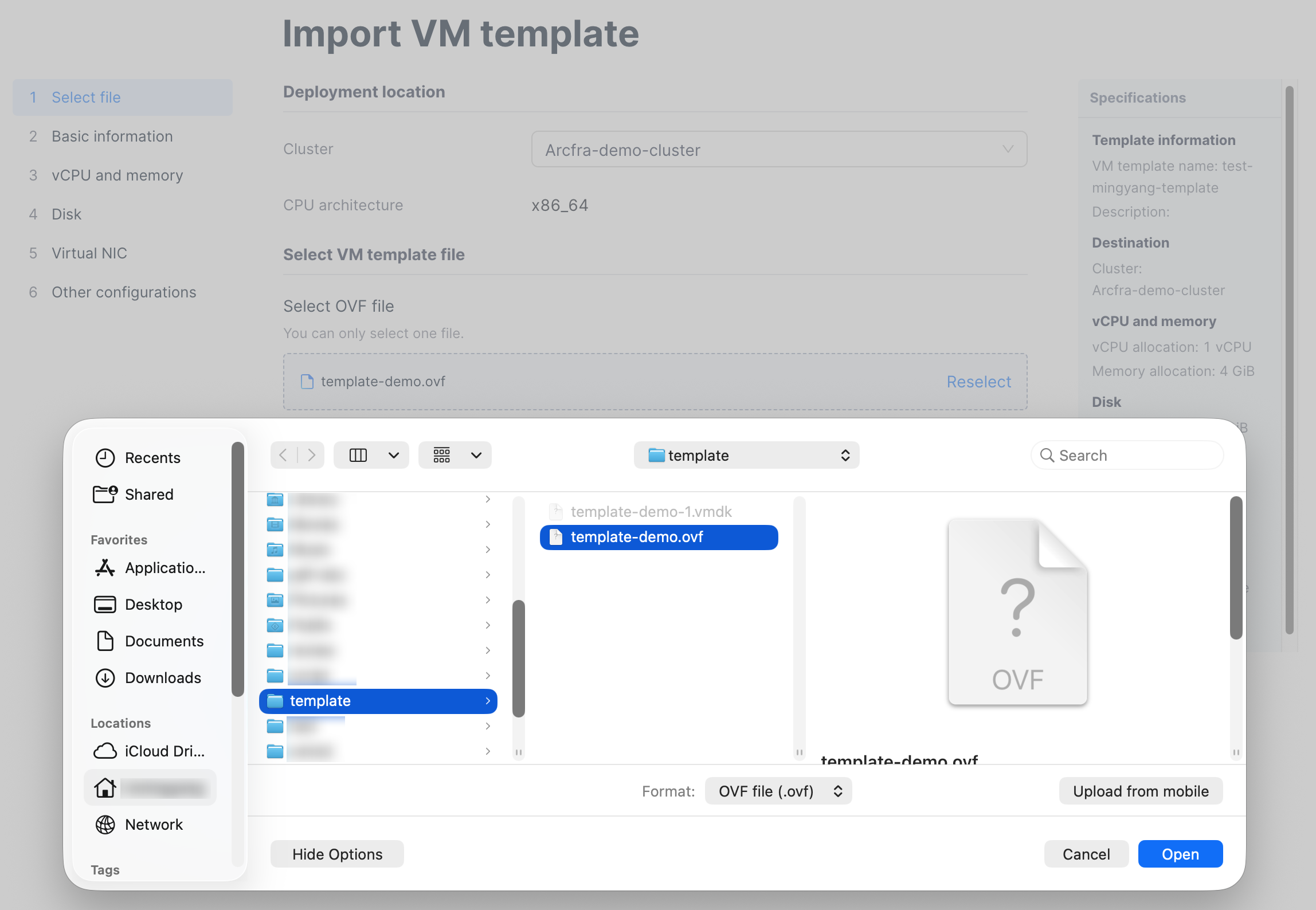
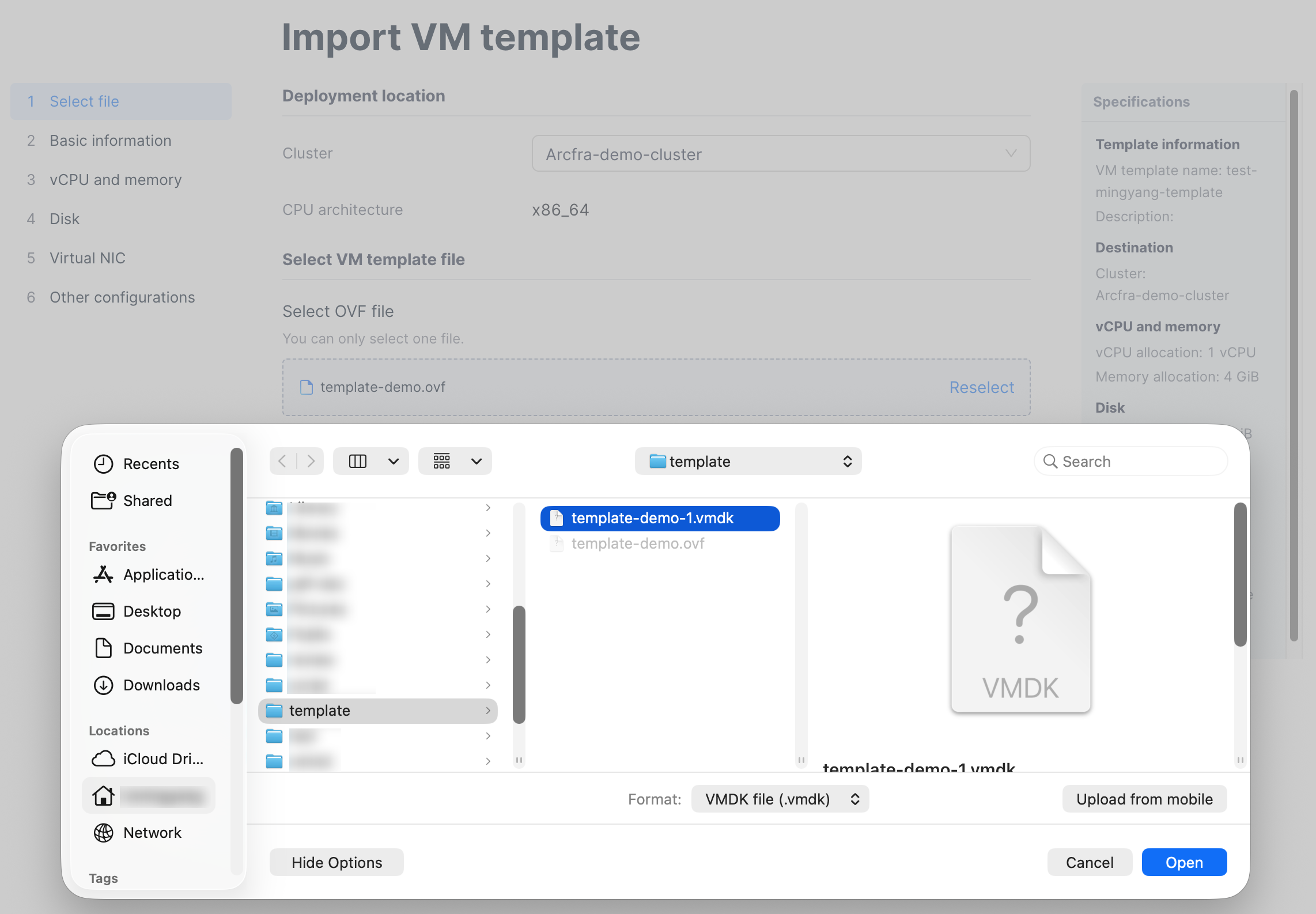
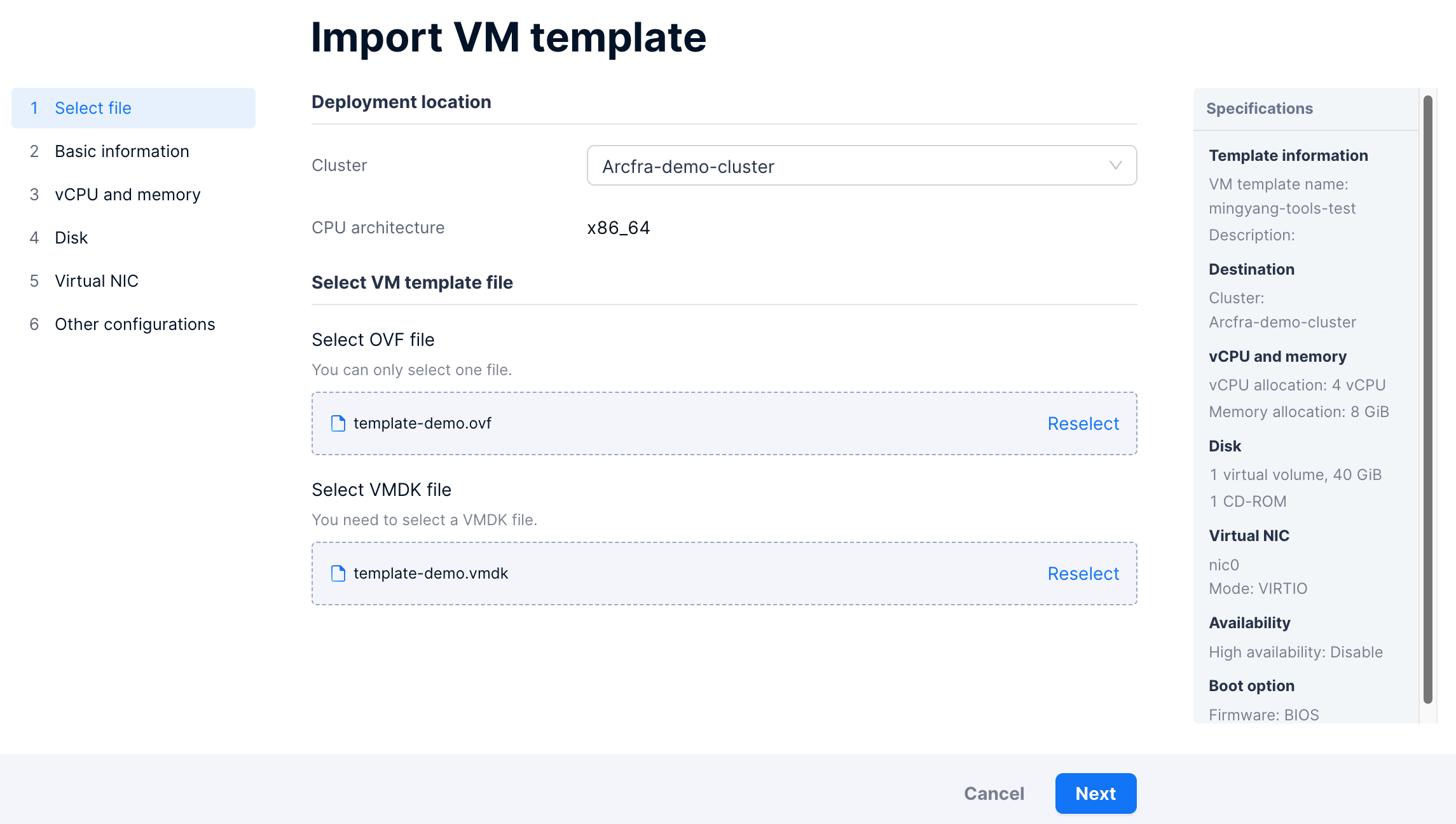
Following the wizard, in Step 1, select the right cluster from the list, then click the upload icon  to upload OVF and vmdk file as below:
- Click "Next".
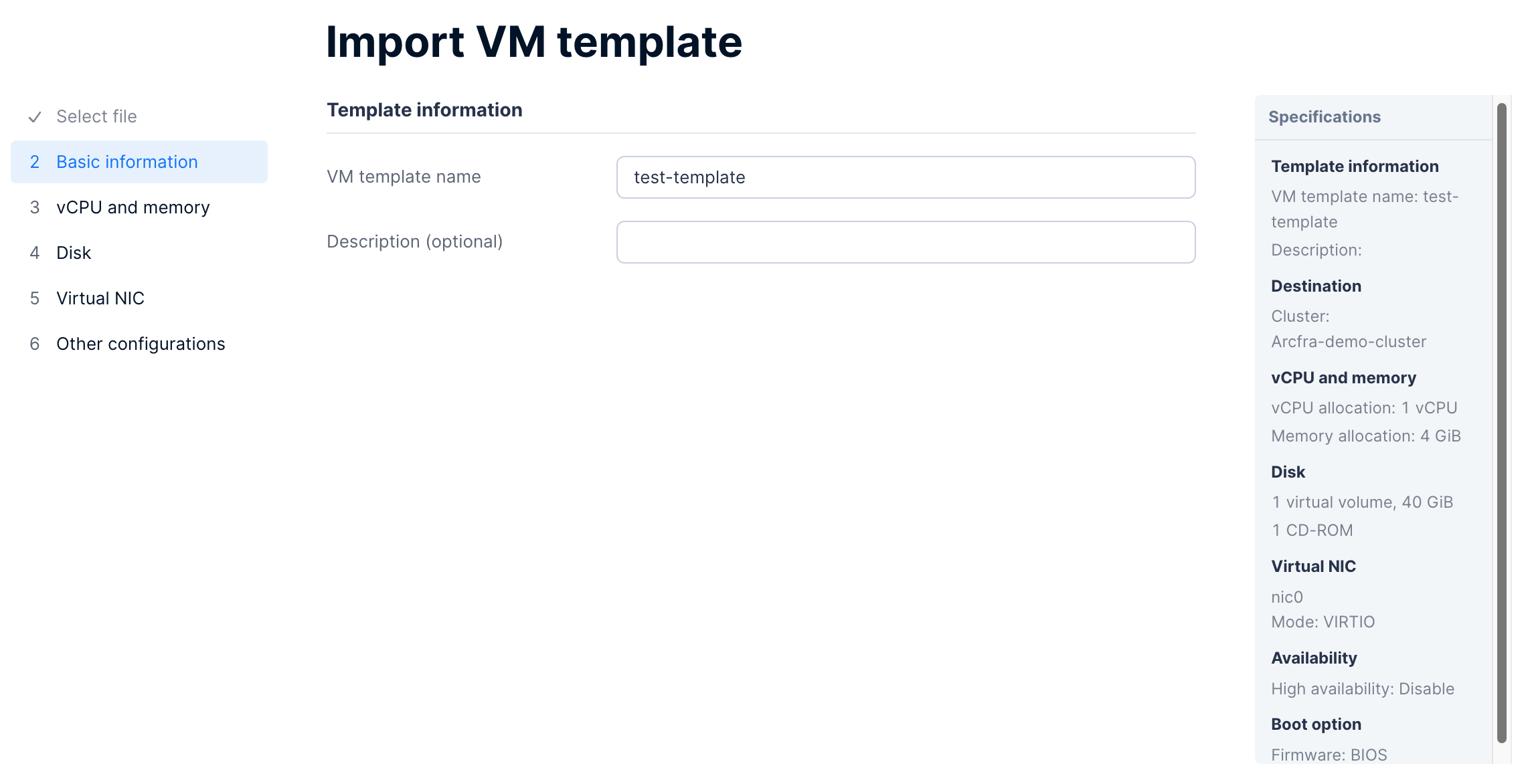
- In step 2 of the wizard, input the "VM template name" in the text box:
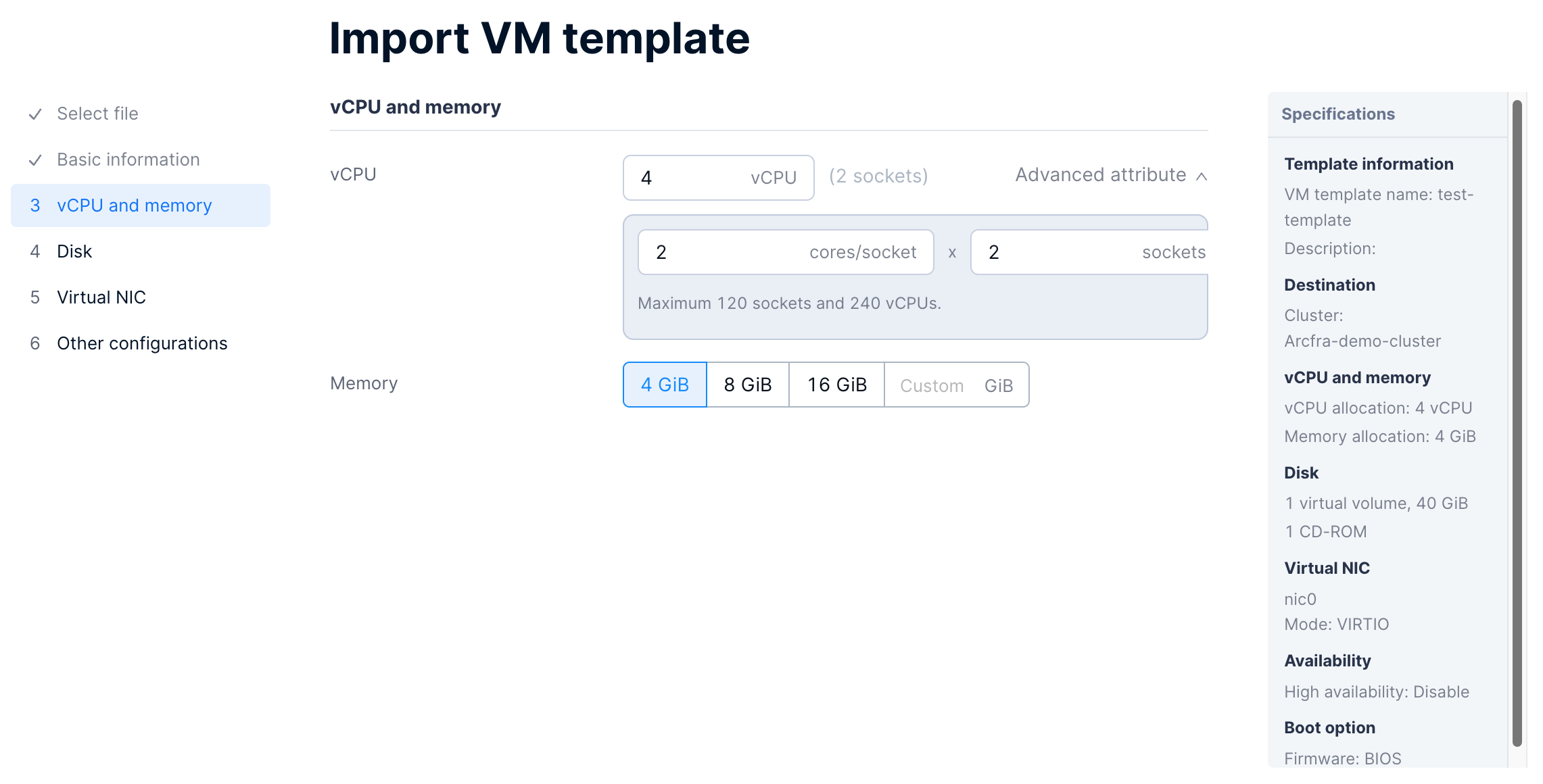
- Next in step 3 of the wizard, set vCPU, Memory for the template.
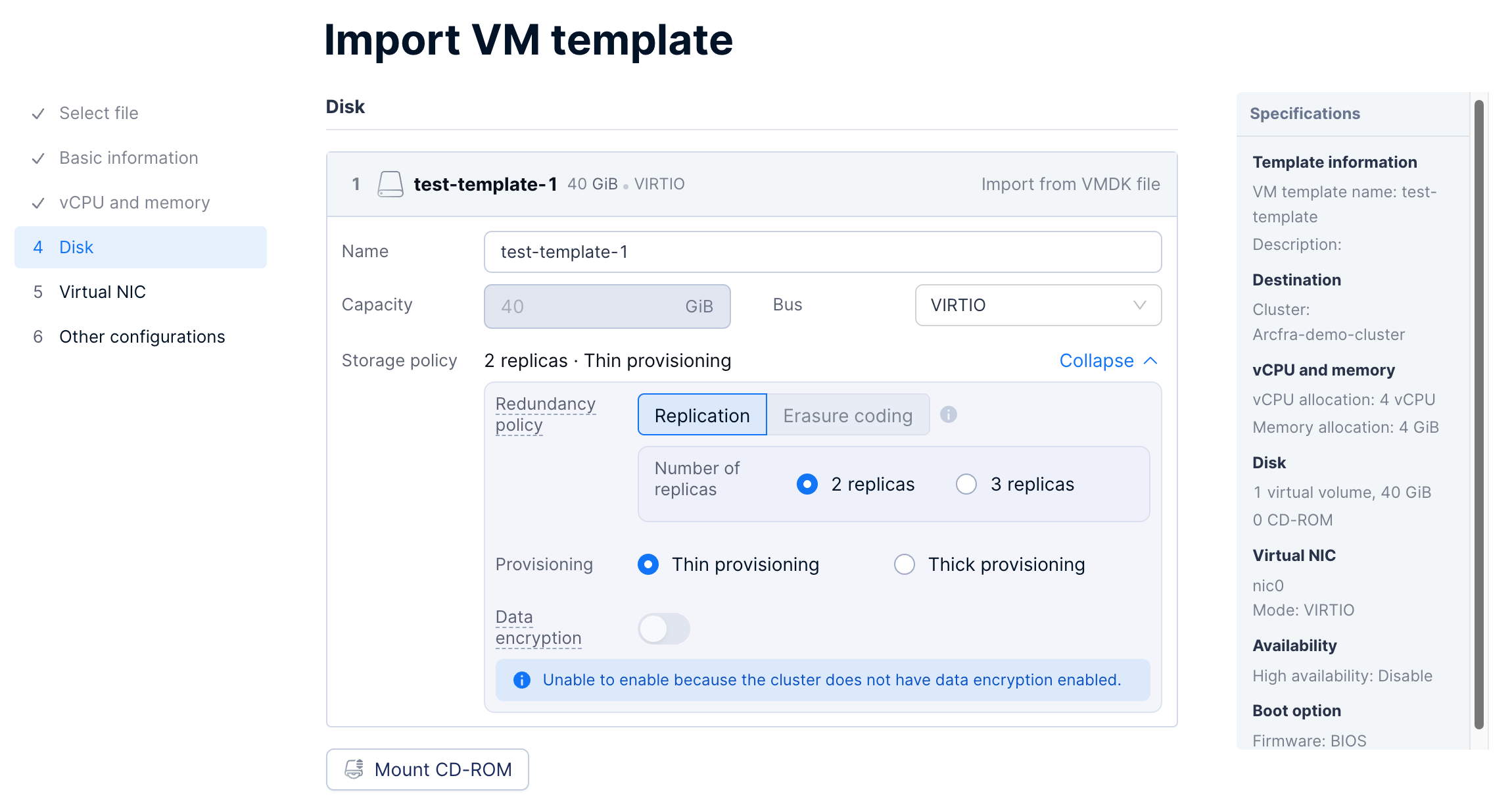
- In step 4 of the wizard, set Disk configuration, such as "Redundancy policy", Provisioning type:
Here, let's set 2 replicas and Thin Provisioning
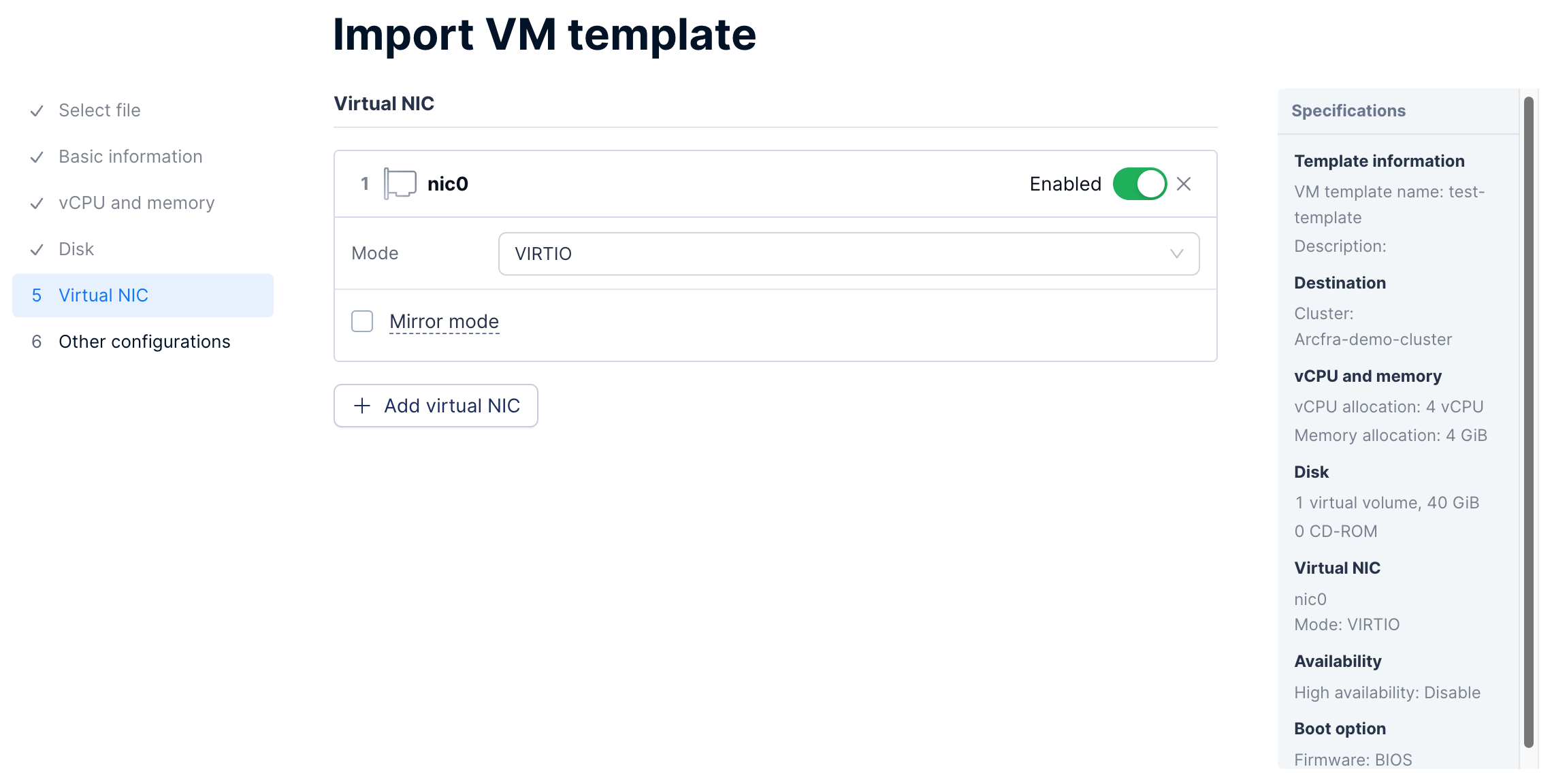
- In step 5 of the wizard, you can enable one "Virtual NIC" at this time.
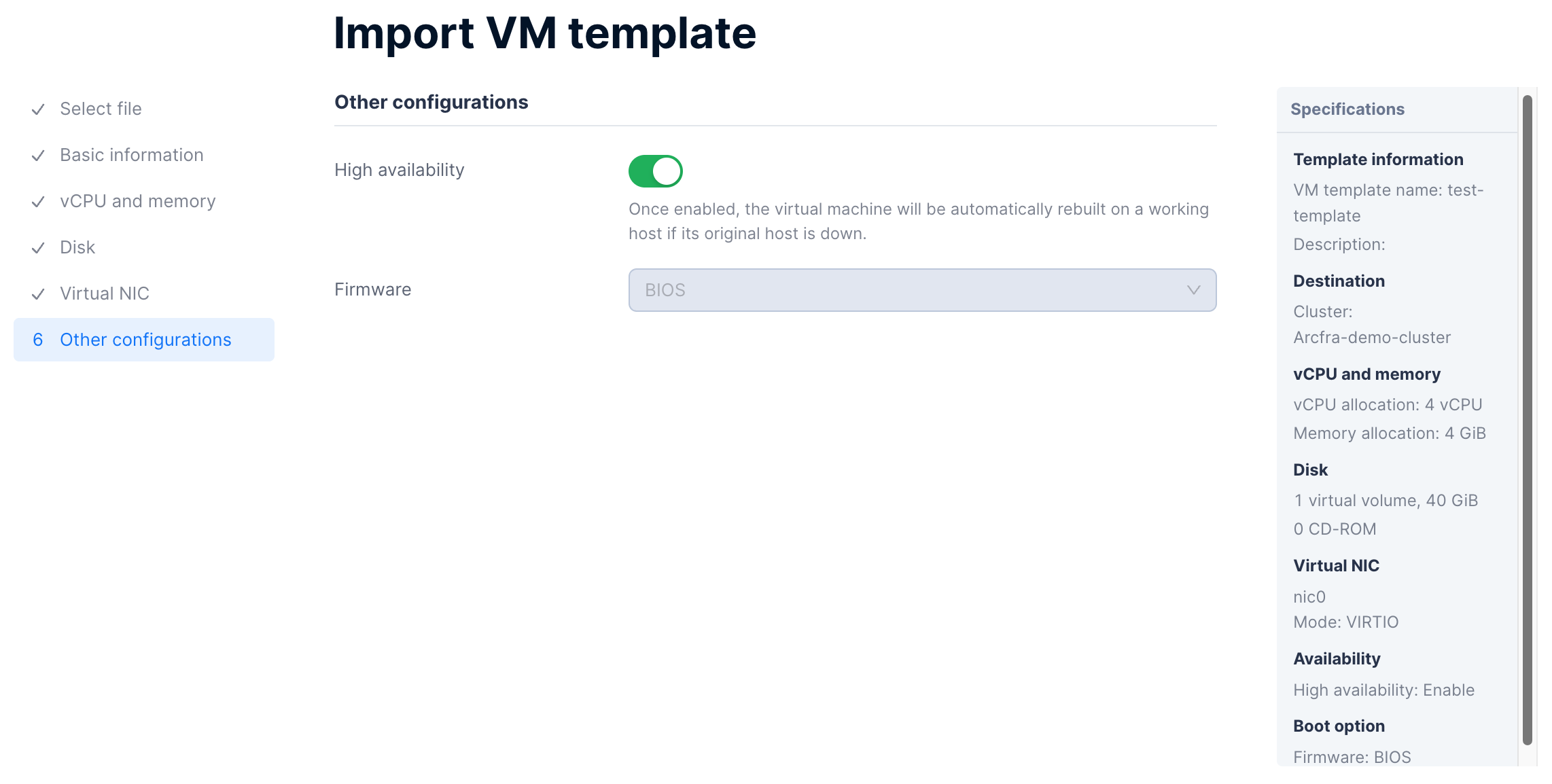
- In step 6 of the wizard, enable "High Availability" for the template:
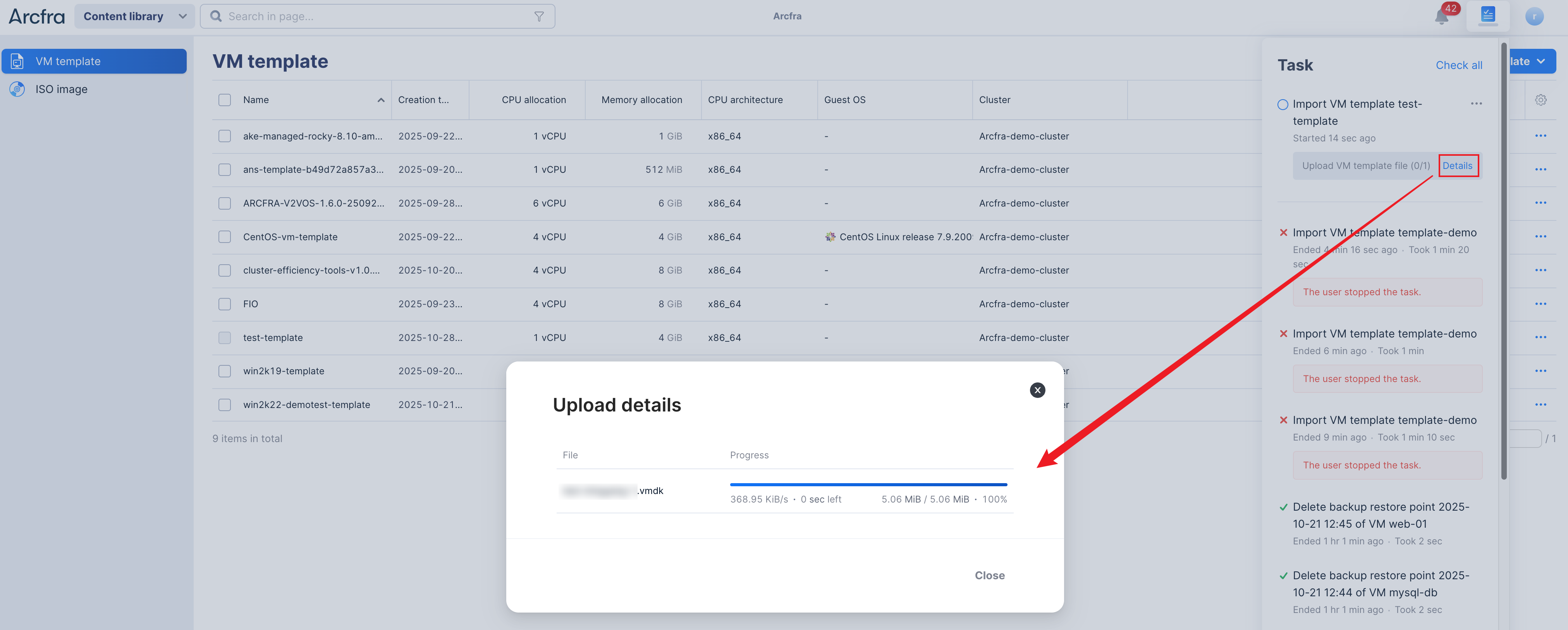
- Then you can check the progress of file uploading and template importing in the "Task Center".
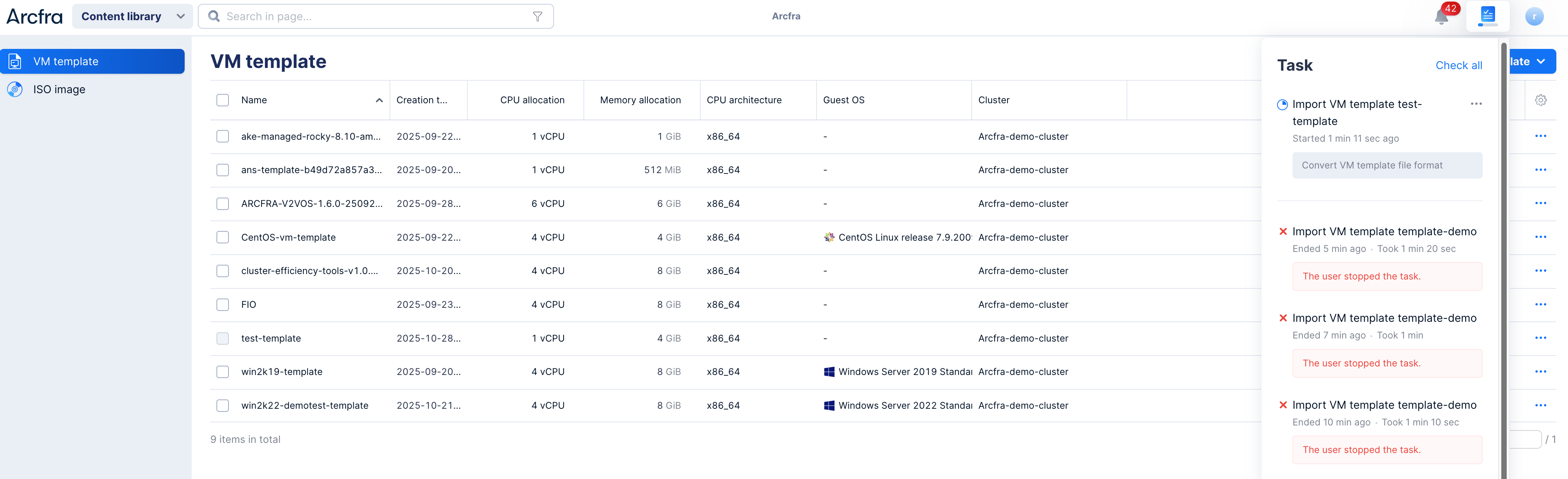
- When all is completed, you can view the newly created VM template in Content library > VM template.

Congratulations, your first VM template has been created in ACOS cluster.
